Adding additional Financial Input sheets
When creating a Threshold capital project, you can add multiple Financial Input sheets to help you input different financial information for a project.
By default, the financials form each Financial Input sheet that you add flow into the Balance Sheet and Financial Statements worksheets, but you can enable or disable this functionality in the Settings options for each sheet. If you disable this option, the system will not include the financial information in the Balance Sheet or Financial Statement. By enabling and disabling the Financial Input sheets, you can see what impact each analysis will have on your consolidated analysis by calculating the individual contribution margin and income statement for each sheet.
To add additional Financial Input sheets to a Threshold project:
- Create a Threshold capital project or open an existing project.
- Click the Financials tab.
-
On the right side of the page, click the + icon.
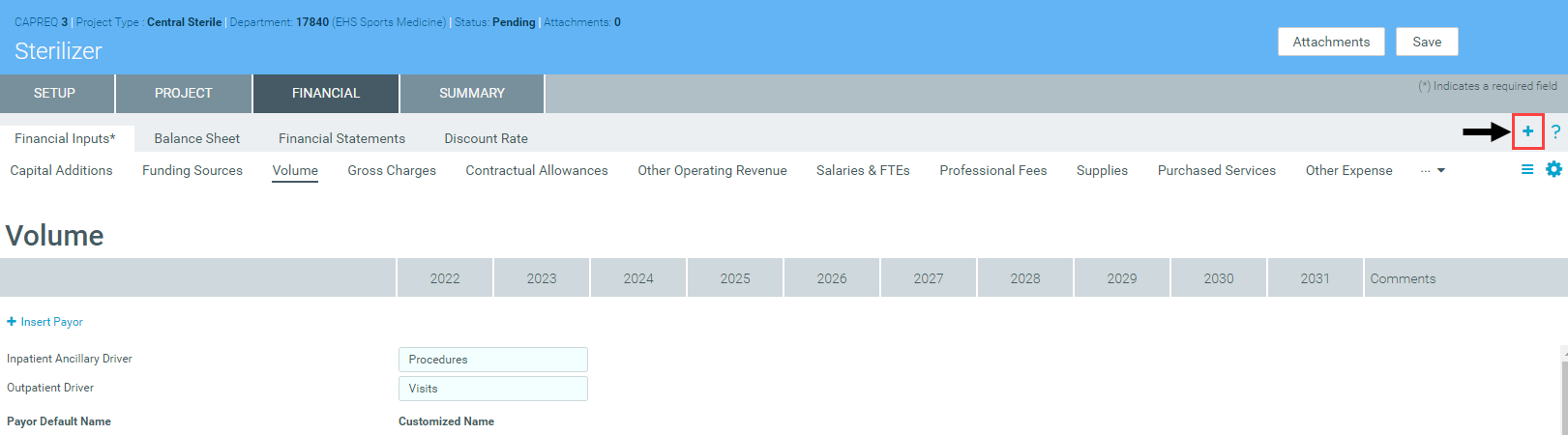
-
In the Add Sheet dialog, type a name for the sheet, and click Save.
The new sheet displays as a sub-tab next to the Financial Inputs sub-tab.

- Configure the settings for additional sheets by doing the following:
On the left side of the page, click the gear icon.

In the Settings dialog, do the following, as needed:
Option Description Integrated Financials To include the results in the Balance Sheet and Financial Statements sheet, from the drop-down, select Yes.
NOTE: This is set to Yes by default.
- To exclude the results from the Balance Sheet and Financial Statements sheet, from the drop-down, select No.
TIP: To analyze different Financial Input scenarios, you can enable or disable this functionality for each sheet that you add.
Pro Forma Start Year The start year for the project.
NOTE: You cannot edit this field. It is assumed that any additional Financial Input tabs that you add apply to the same start year.
Input Years The default input years for the project based on the template configurations set up by your organization. Input Years To change the input years, from the drop-down, select a number. - Click OK.
- Complete the fields in the tab using the instructions in the following topic .
- Complete steps 3-6 for each new sheet to add to your project.
- After making your changes, in the upper right corner of the page, click Save.
IMPORTANT: When you add additional Financial Input sheets, you will need to refresh each sheet when the Pro Forma Start Year is changed in the original Financial Inputs sheet. For more information, see Refreshing additional Financial Input sheets.
